Builder Overview
The five builder tabs
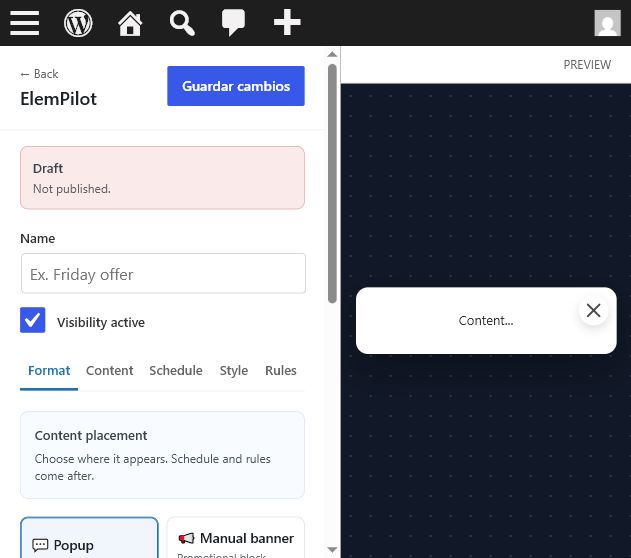
The builder uses five tabs: Format, Content, Schedule, Style, and Rules. Format decides what the item is. Content controls the copy, media, HTML, smart template fields, countdown labels, and buttons. Schedule controls dates, hours, and recurring days. Style controls size, spacing, radius, and colors. Rules controls where and for whom the item appears.
Recommended setup order
- Pick the format first.
- Add the content or smart template values.
- Set the schedule and countdown behavior.
- Adjust style only after the preview has real content.
- Lock rules last so testing is easier.
Common question
Why does the preview change when I switch formats? Each format has different layout rules, so the builder hides irrelevant controls and preview states.
Las cinco pestañas del builder
El builder usa Format, Content, Schedule, Style y Rules. Format decide qué tipo de item es. Content controla texto, media, HTML, campos inteligentes, labels de countdown y botones. Schedule controla fechas, horas y días recurrentes. Style ajusta tamaño, espaciado, radios y colores. Rules decide dónde y para quién aparece.
Orden recomendado
- Elige primero el formato.
- Agrega contenido o valores de plantilla.
- Configura horario y countdown.
- Ajusta estilos cuando el preview tenga contenido real.
- Define reglas al final para probar más fácil.
Pregunta común
¿Por qué cambia el preview al cambiar formato? Cada formato tiene reglas de layout distintas, por eso se ocultan controles irrelevantes.
Format Tab: Popups, Banners, Notices, Buttons, and Countdowns
Available formats
- Popup: modal overlay for strong offers, lead magnets, coupons, and launch messages.
- Banner: manual shortcode placement inside posts, pages, sidebars, or builders.
- Notice: small floating message that does not block the page.
- Floating CTA: global circular button for WhatsApp, coupon, call, Telegram, checkout, Instagram, or Messenger actions.
- Countdown: standalone timer using the same schedule deadline logic.
How to choose
Use popups for interruptions, banners for contextual offers, notices for subtle reminders, CTA buttons for mobile action, and countdowns when urgency is the main message.
Important behavior
Some formats hide the Style tab or content fields because the format has fixed dimensions or a fixed action pattern.
Formatos disponibles
- Popup: modal para ofertas fuertes, leads, cupones y lanzamientos.
- Banner: colocación manual dentro de posts, páginas, sidebars o builders.
- Notice: mensaje flotante pequeño que no bloquea la página.
- Floating CTA: botón global para WhatsApp, cupón, llamada, Telegram, checkout, Instagram o Messenger.
- Countdown: temporizador independiente usando la misma lógica de fecha límite.
Cómo elegir
Usa popups para interrupciones, banners para ofertas contextuales, notices para recordatorios sutiles, CTAs para acción móvil y countdowns cuando la urgencia sea el mensaje principal.
Comportamiento importante
Algunos formatos ocultan Style o campos de contenido porque usan dimensiones o acciones fijas.
Content Tab: Text, Images, Slider, HTML, Coupons, and Smart Fields
Content types
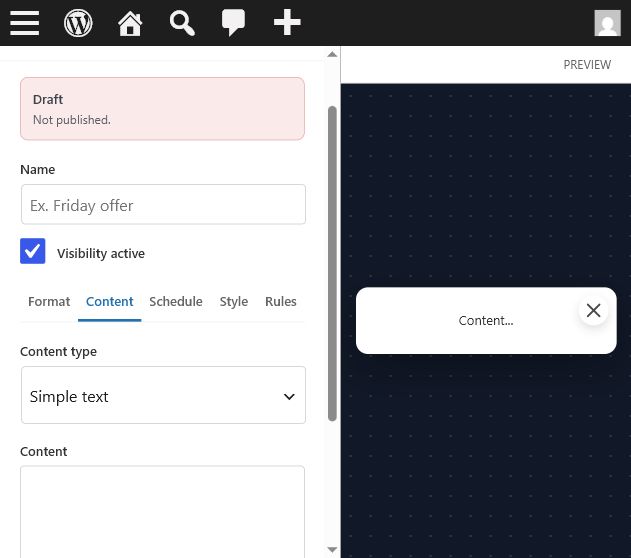
Standard content is best for quick text-based offers. Image content is best for product or sale artwork. Slider content lets you rotate benefits. HTML content is useful for custom layouts. Smart templates expose safe fields such as headline, description, image, coupon, button URL, and colors.
Setup steps
- Choose the content mode that matches your format.
- Add a short headline and one primary action.
- Keep smart template fields within their visible character limits.
- Use a real image with enough contrast for small screens.
Common questions
Can I paste custom CSS or JavaScript? Custom HTML can be used, but smart templates should be edited through their fields so preview and live output stay consistent.
Tipos de contenido
El contenido estándar sirve para ofertas rápidas. Imagen funciona mejor para arte promocional. Slider rota beneficios. HTML permite layouts personalizados. Smart templates exponen campos seguros como título, descripción, imagen, cupón, URL de botón y colores.
Pasos
- Elige el modo de contenido según el formato.
- Agrega un título corto y una acción principal.
- Mantén los campos de plantilla dentro de límites visibles.
- Usa imágenes reales con contraste suficiente para móvil.
Pregunta común
¿Puedo pegar CSS o JavaScript? HTML personalizado puede usarse, pero las smart templates deben editarse con sus campos para mantener igual preview y salida real.