Welcome to ElemPilot
What ElemPilot is for
ElemPilot is a timed conversion toolkit for WordPress. It lets you create popups, shortcode banners, floating notices, floating CTA buttons, standalone countdowns, Gutenberg blocks, and iframe-based smart templates from one shared visibility engine.
Core workflow
- Create an item from the ElemPilot dashboard.
- Choose the format: popup, banner, notice, floating button, or countdown.
- Add content, images, HTML, smart template fields, or button actions.
- Set schedule, time windows, weekday recurrence, device, audience, and display rules.
- Publish and verify the preview or shortcode on the front end.
When to use it
Use ElemPilot when a promotion needs to appear only at the right time, in the right place, and with a clear call to action.
Common questions
Does every format use the same schedule? Yes. Popups, banners, notices, CTA buttons, and countdowns are all checked by the same visibility rules.
Para qué sirve ElemPilot
ElemPilot es un kit de conversión con control de tiempo para WordPress. Permite crear popups, banners por shortcode, notices flotantes, botones CTA, countdowns independientes, bloques Gutenberg y plantillas inteligentes con iframe usando un mismo motor de visibilidad.
Flujo principal
- Crea un item desde el dashboard de ElemPilot.
- Elige el formato: popup, banner, notice, botón flotante o countdown.
- Agrega contenido, imágenes, HTML, campos de plantilla o acciones de botón.
- Configura fechas, horas, días recurrentes, dispositivo, audiencia y reglas.
- Publica y revisa el preview o shortcode en el front end.
Cuándo usarlo
Úsalo cuando una promoción debe aparecer en el momento correcto, en el lugar correcto y con una llamada a la acción clara.
Preguntas comunes
¿Todos los formatos usan el mismo horario? Sí. Popups, banners, notices, botones y countdowns pasan por las mismas reglas de visibilidad.
Dashboard and Items List
Dashboard areas
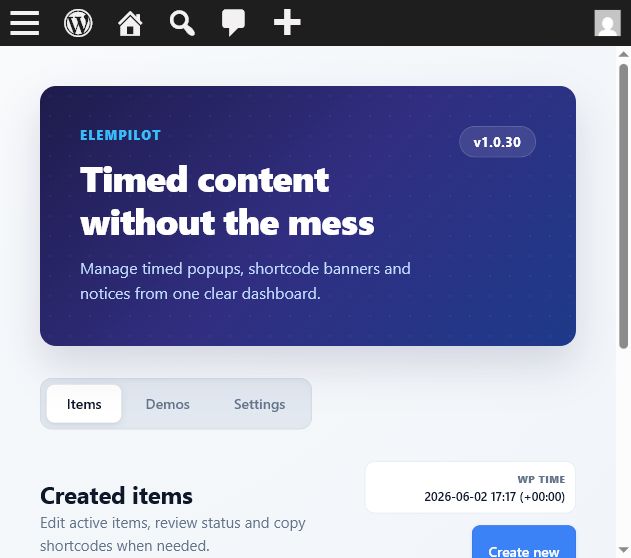
The dashboard groups the day-to-day work into Items, Demos, and Settings. Items shows active campaigns, schedule status, and shortcode details. Demos gives you a fast starting point for visual formats. Settings keeps production-level preferences such as plugin language.
What to check first
- Status: active, scheduled, expired, paused, conditional, or blocked by plan.
- Placement: popup, banner, notice, floating button, or countdown.
- Shortcode: copy it when you want manual placement.
- Schedule summary: confirm the item is allowed to show today.
Troubleshooting
If an item is missing from the front end, first check whether it is published, enabled, allowed by plan, and currently inside its time rule.
Áreas del dashboard
El dashboard separa el trabajo diario en Items, Demos y Settings. Items muestra campañas activas, estado de horario y shortcodes. Demos ofrece puntos de partida visuales. Settings guarda preferencias de producción, como idioma del plugin.
Qué revisar primero
- Estado: activo, programado, expirado, pausado, condicional o bloqueado por plan.
- Ubicación: popup, banner, notice, botón flotante o countdown.
- Shortcode: cópialo para colocación manual.
- Resumen de horario: confirma que el item puede mostrarse hoy.
Solución rápida
Si un item no aparece, revisa si está publicado, habilitado, permitido por el plan y dentro de su regla de tiempo.