PopupsPopups
Create modal campaigns with text, media, HTML, coupons, and countdown headers.Crea campañas modales con texto, media, HTML, cupones y countdowns.
When to use popups
Use popups for high-priority offers: launch discounts, lead magnets, limited coupons, cart reminders, and announcements that should not be missed.
Popup content options
- Standard copy for fast announcements.
- Image campaigns for product artwork.
- Slider campaigns for multiple benefits.
- HTML for custom layouts.
- Countdown header for urgency.
Image and gallery setup
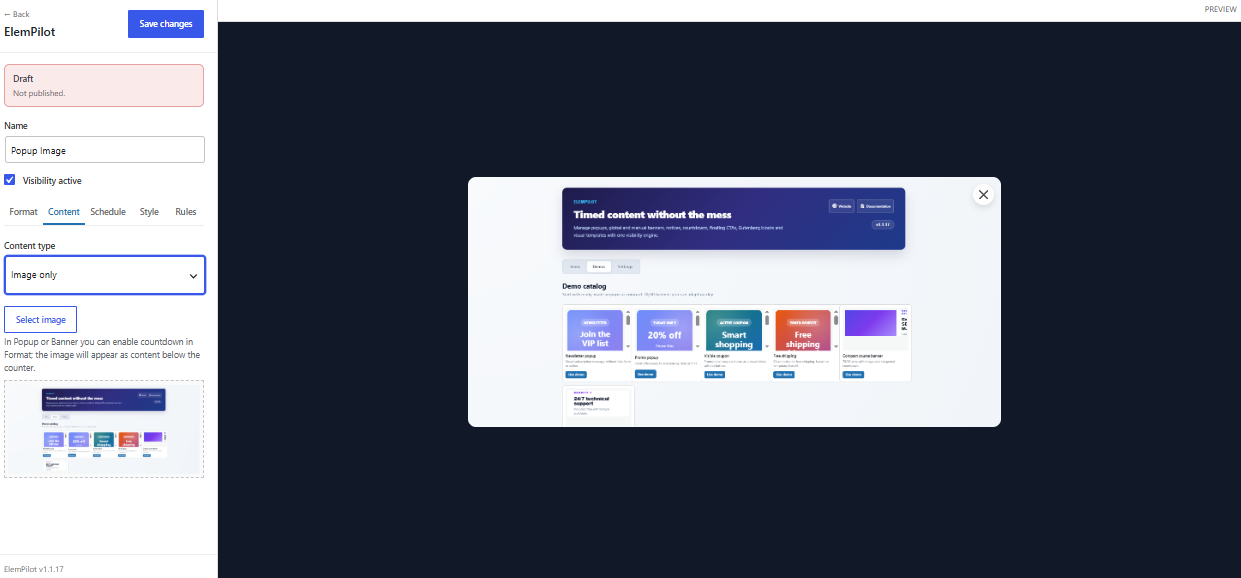
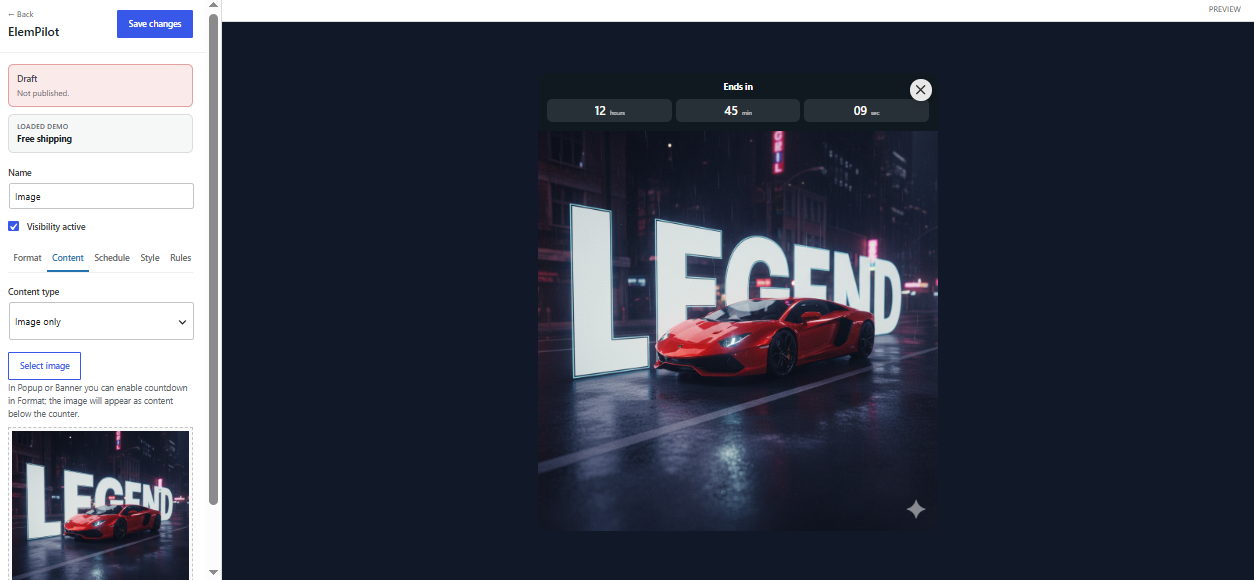
Choose artwork from the Media Library and check its crop in preview. Image only keeps artwork as the primary message; Slider/Gallery rotates multiple pieces.
Popup with countdown
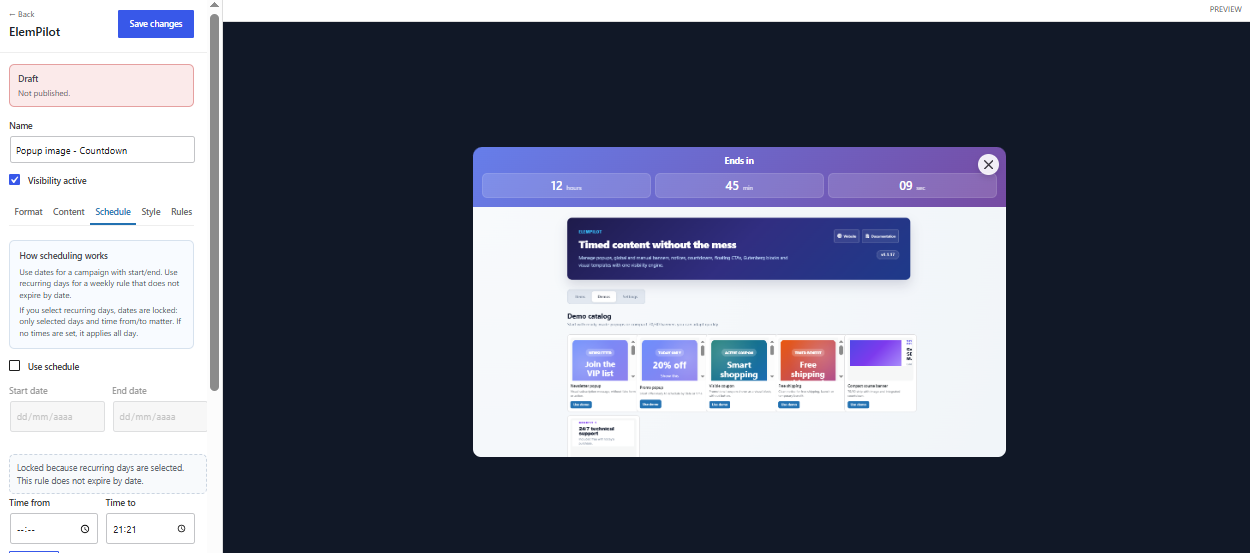
Enable Add countdown in Format, then configure End date/Time to or recurring weekdays in Schedule. The timer is added to the header while visual content remains below it.
Setup steps
- Select Popup in the Format tab.
- Add the message and optional image or slider.
- Enable countdown if the offer has a deadline.
- Set delay and rules so the popup is not too aggressive.
Common questions
Can the button copy a coupon? Yes. Coupon-style actions can display or copy a configured code depending on the selected action style.
Cuándo usar popups
Usa popups para ofertas de alta prioridad: descuentos de lanzamiento, lead magnets, cupones limitados, recordatorios de carrito y anuncios que no deben pasar desapercibidos.
Opciones
- Texto estándar para anuncios rápidos.
- Imagen para campañas visuales.
- Slider para varios beneficios.
- HTML para layouts personalizados.
- Header con countdown para urgencia.
Imagen y galería
Elige la imagen desde Media Library y comprueba el recorte en preview. Image only mantiene el arte como mensaje principal; Slider/Gallery rota varias piezas.
Popup con countdown
Activa Add countdown en Format y configura End date/Time to o días recurrentes en Schedule. El contador se añade a la cabecera y el contenido visual permanece debajo.
Pasos
- Selecciona Popup en Format.
- Agrega mensaje e imagen/slider si aplica.
- Activa countdown si hay fecha límite.
- Configura delay y reglas para no ser agresivo.
Pregunta común
¿El botón puede copiar un cupón? Sí. Las acciones tipo cupón pueden mostrar o copiar el código configurado.