Gutenberg BlocksBloques Gutenberg
Use visibility wrappers, countdown blocks, and saved item blocks in the editor.Usa wrappers de visibilidad, bloques countdown y bloques de item guardado.
Three ElemPilot blocks and one native alternative
- ElemPilot Visibility: contains inner blocks and decides whether the section renders.
- ElemPilot Countdown: creates its own timer and defines what happens at expiration.
- ElemPilot Item: renders a saved item after you enter its Item ID in the block inspector.
- WordPress Shortcode block: renders the same item when you paste
[elempilot id="46"].
Example: Visibility Wrapper
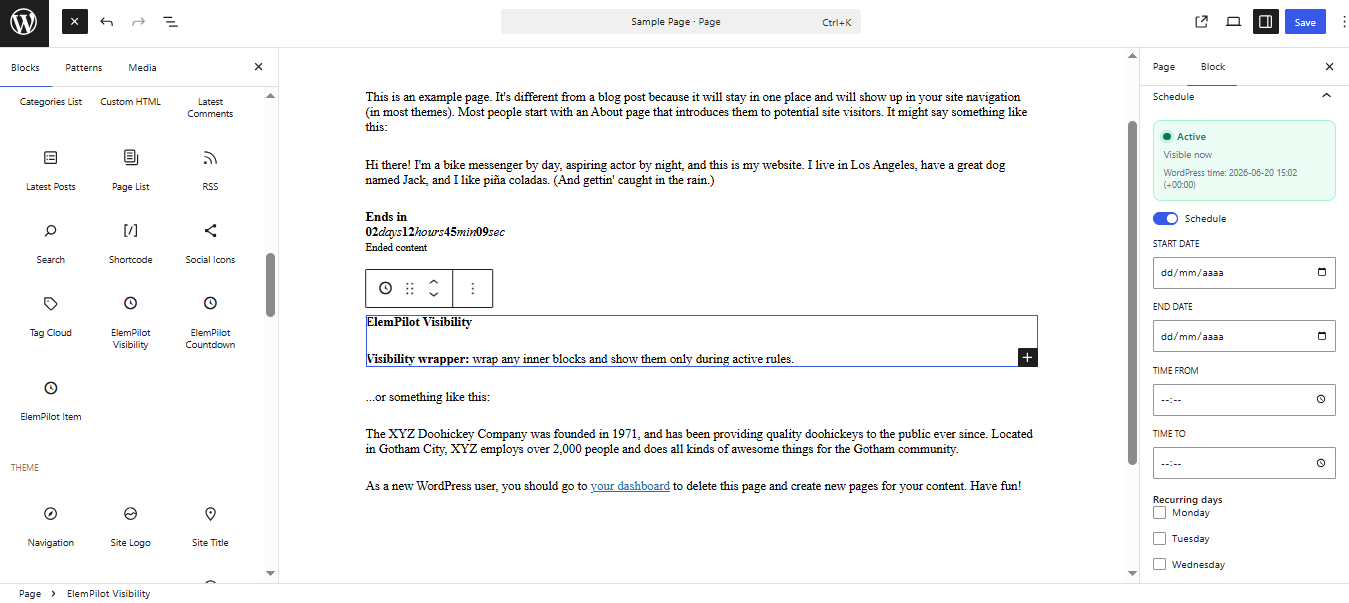
Insert ElemPilot Visibility, then add headings, buttons, images, or nested blocks. Configure dates, times, weekdays, device, and audience. When the rule does not match, inner content is not delivered to the visitor.
Example: Countdown Block
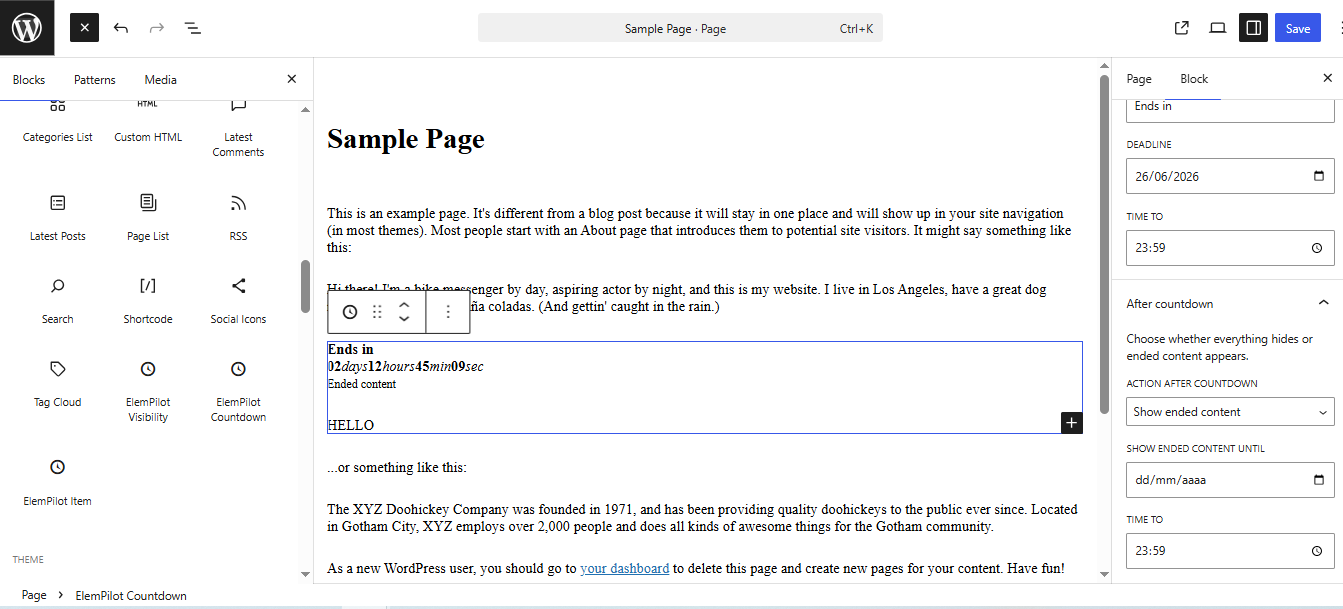
Use ElemPilot Countdown for a localized offer. Configure deadline, style, and expiration action; it can hide content or reveal its inner content when time reaches zero.
Example: ElemPilot Item or Shortcode block
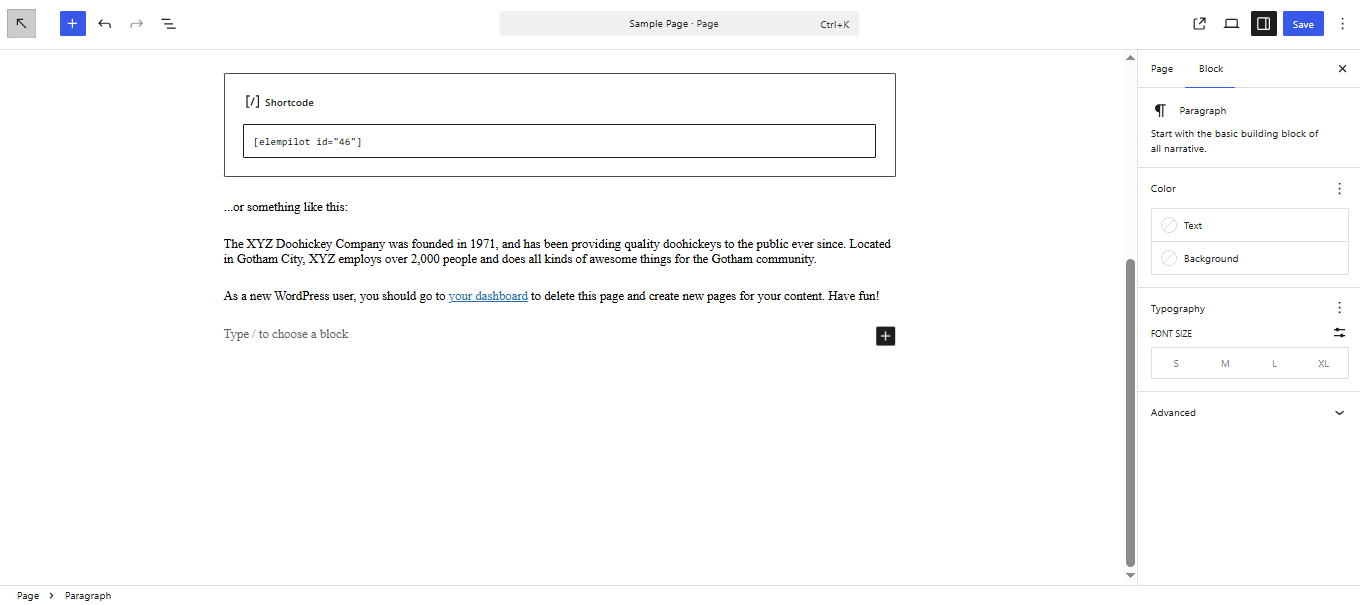
With ElemPilot Item, enter the numeric ID in the inspector and Gutenberg requests a server-side preview. Alternatively, add the native Shortcode block and paste [elempilot id="46"], exactly as shown in the screenshot. Both render the saved item, which retains its own Schedule and Rules.
Which method should you use?
ElemPilot Item provides a dedicated ID interface. The Shortcode block is convenient when you already copied the code from the dashboard or use a shortcode-based pattern.
Tres bloques propios y una alternativa nativa
- ElemPilot Visibility: contiene otros bloques y decide si la sección se renderiza.
- ElemPilot Countdown: crea un temporizador propio y define qué ocurre al expirar.
- ElemPilot Item: renderiza un item guardado introduciendo su Item ID en el inspector del bloque.
- Bloque Shortcode de WordPress: renderiza el mismo item pegando
[elempilot id="46"].
Ejemplo: Visibility Wrapper
Inserta ElemPilot Visibility y agrega dentro títulos, botones, imágenes o bloques anidados. Configura fechas, horas, días, dispositivo y audiencia. Cuando la regla no coincide, el contenido interior no se entrega al visitante.
Ejemplo: Countdown Block
Usa ElemPilot Countdown para una oferta localizada. Configura fecha límite, estilo y acción final; puede ocultar contenido o revelar el contenido interior al llegar a cero.
Ejemplo: ElemPilot Item o bloque Shortcode
Con ElemPilot Item, escribe el ID numérico en el inspector y Gutenberg solicita un preview server-side. Como alternativa, añade el bloque nativo Shortcode y pega [elempilot id="46"], exactamente como muestra la captura. Ambos renderizan el item guardado y este conserva su propio Schedule y Rules.
Cuál conviene usar
ElemPilot Item ofrece una interfaz dedicada por ID. El bloque Shortcode resulta útil cuando ya copiaste el código desde el dashboard o trabajas con un patrón que usa shortcodes.