Smart Templates and Iframe RenderingSmart Templates y Renderizado en Iframe
Understand iframe previews, editable fields, and preview/live parity.Entiende previews iframe, campos editables y paridad preview/live.
What a Visual template is
It is a complete bar, popup, drawer, mini card, inline promotion, or other predefined layout. Choose Visual template in Format, then select the specific design and edit its fields in Content.
Editor and iframe
The form stays in WordPress while the real design may render inside an isolated iframe. Admin, theme, Gutenberg, and page-builder CSS cannot alter typography, spacing, buttons, shadows, or placement.
What you can configure
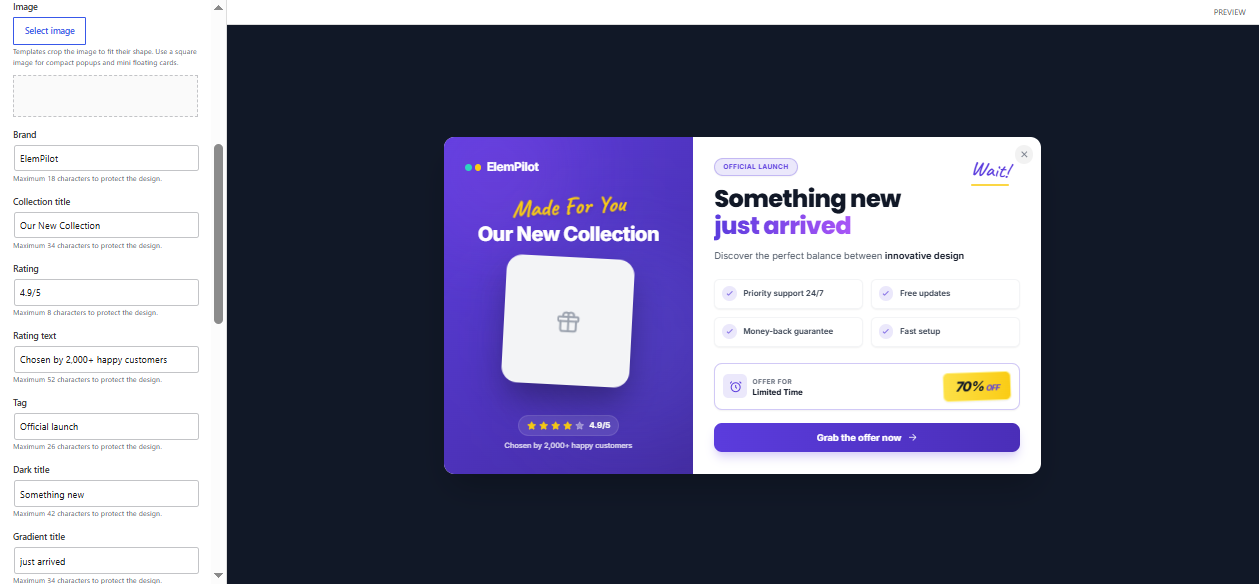
Each template declares its own fields. Depending on the design, these may include image, brand, headline, highlighted copy, description, badge, rating, benefits, coupon, button text, URL, icon, colors, or countdown labels. Character limits protect the layout, and unsupported fields are not shown.
Schedule works like other formats
You can enable Use schedule, set Start/End date, Time from/to, or choose recurring weekdays. Device and Audience also apply. With scheduling off and no recurrence, the template remains available without a time restriction.
Shortcode and placement
Visual Templates can render with [elempilot id="123"]. Inline surfaces force shortcode mode and appear exactly where inserted. Floating surfaces, bars, and popups can render automatically or with Use only with shortcode; when invoked by shortcode, ElemPilot queues them into the footer to preserve fixed behavior.
Image, button, coupon, and countdown behavior
- Image: selected from the Media Library and cropped to the template shape.
- Button: uses configured text and URL.
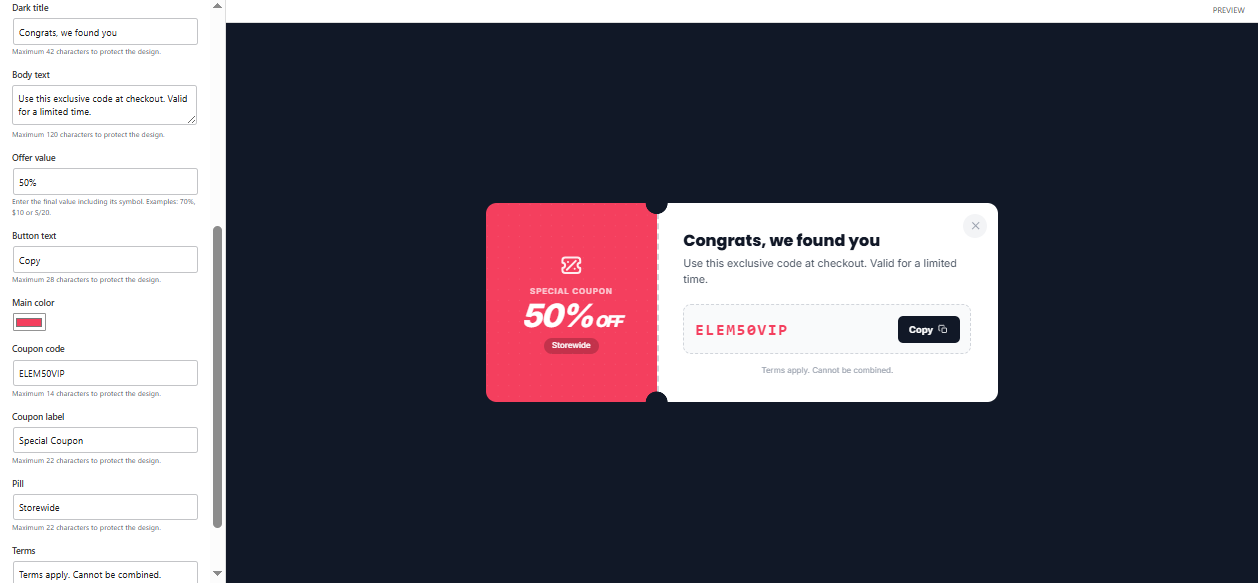
- Coupon: appears only when the design declares that field.
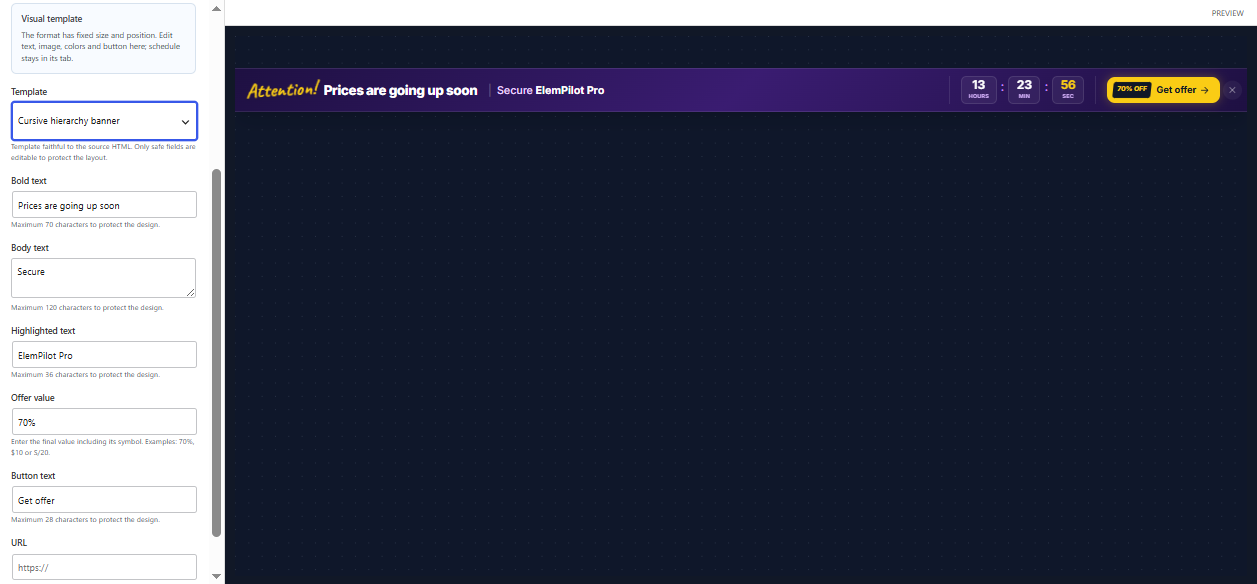
- Countdown: many templates include one, but it activates only in countdown-capable designs and uses the item Schedule deadline.
Preview and published output
Preview and live use the same renderer and markup. The iframe reports content height to prevent internal scrollbars or empty space, and resize messages are accepted only from the expected frame.
Troubleshooting
- If an inline template is missing, confirm its shortcode is present.
- If a floating template uses shortcode-only mode, confirm the shortcode exists on the page.
- If an image crops badly, use a shape-appropriate source.
- If copy breaks the design, stay within the field limit.
- Do not patch the iframe interior with global CSS; isolation is intentional.
Qué es una Visual template
Es una pieza completa para barras sticky, popups, drawers, mini cards, promociones inline y otros layouts. En Format eliges Visual template; en Content eliges el diseño concreto y editas sus campos.
Editor e iframe
El formulario permanece en WordPress y el diseño real puede renderizarse dentro de un iframe aislado. Así el CSS del admin, tema, Gutenberg o builder no cambia tipografía, espaciado, botones, sombras o posición.
Qué puedes configurar
Cada plantilla declara sus propios campos. Según el diseño pueden aparecer imagen, marca, título, texto destacado, descripción, badge, rating, beneficios, cupón, texto del botón, URL, icono, colores o labels del countdown. Los límites de caracteres protegen el layout y los campos no compatibles no aparecen.
Schedule funciona igual que en otros formatos
Puedes activar Use schedule, usar Start/End date, Time from/to o elegir días recurrentes. También se aplican Device y Audience. Si la programación está apagada y no hay recurrencia, la plantilla queda disponible sin límite temporal.
Shortcode y ubicación
Las Visual Templates pueden renderizarse con [elempilot id="123"]. Las superficies inline fuerzan el modo shortcode y aparecen exactamente donde lo insertas. Las superficies flotantes, barras o popups pueden ser automáticas o Use only with shortcode; cuando se invocan por shortcode, ElemPilot las encola en el footer para conservar su comportamiento fijo.
Imagen, botón, cupón y countdown
- Imagen: se elige desde Media Library y se recorta según la plantilla.
- Botón: usa texto y URL configurados.
- Cupón: aparece solo si el diseño declara ese campo.
- Countdown: muchas plantillas lo incluyen, pero solo se activa en las marcadas como compatibles; toma el deadline del Schedule del item.
Preview y sitio público
Preview y live usan el mismo renderer y markup. El iframe comunica su altura para evitar scroll interno o espacio vacío, y los mensajes de resize se aceptan solo desde el frame esperado.
Solución de problemas
- Si una plantilla inline no aparece, confirma que insertaste su shortcode.
- Si una flotante está en shortcode-only, confirma que el shortcode existe en la página.
- Si la imagen se recorta mal, usa una fuente apropiada para la forma indicada.
- Si el texto rompe el diseño, respeta el límite del campo.
- No intentes corregir el interior con CSS global: el aislamiento del iframe es deliberado.